Put BookSense on your home screen
1 min read
BookSense isn't in the App Store or Google Play, and you don't need either to use it as an app. It installs straight from the website. You get a BookSense icon on your home screen, it opens full screen without the browser's address bar, and pages you opened recently still work without a connection.
How to install it
Open the install page on your phone. The page checks which browser you're using and shows what works there:
- Android: one Install BookSense button in Chrome, Edge and Samsung Internet. Press it, confirm, and the icon appears. In Firefox, use the menu and choose Install.
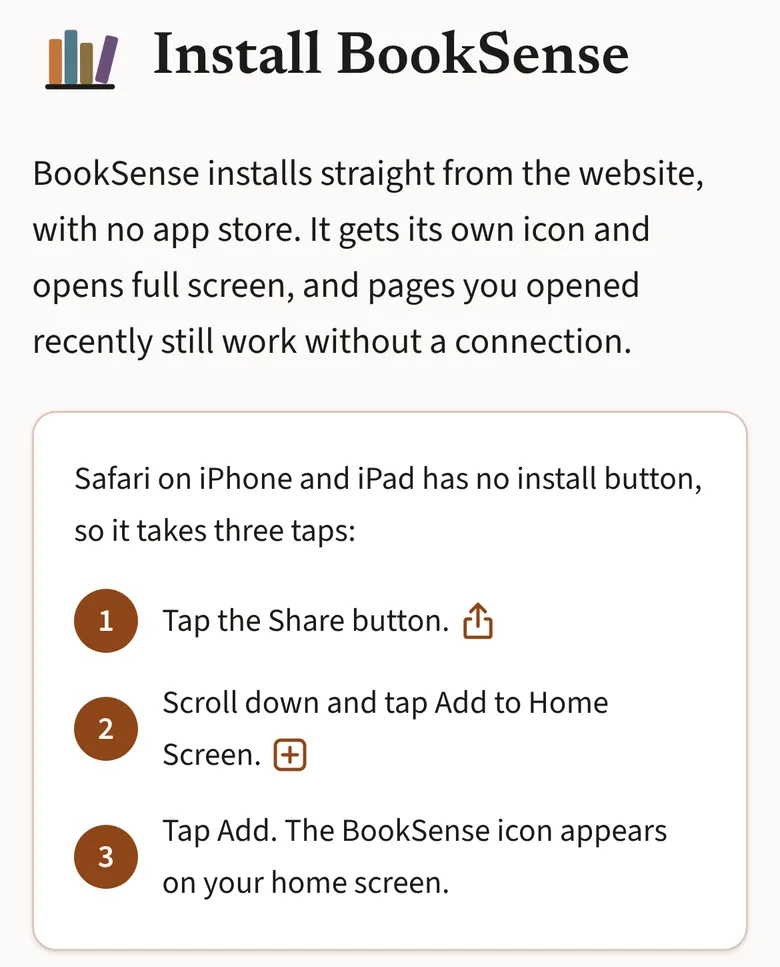
- iPhone and iPad: Apple doesn't let websites show an install button, so it's three taps. Tap Share, scroll down to Add to Home Screen, then tap Add. The page shows the steps with the Share icon to look for.
What to know
- The app is the same BookSense as the website: the same books, the same account and the same shelves in My books. On iPhone and iPad the app keeps its sign-in apart from Safari, so sign in once more inside the app.
- It's free, and there's nothing to update. Each time we change the site, the app has the change too.
- To remove it, delete it the way you'd delete any app: press and hold the icon.